![logoTRANSPARENT-BG_no_LLC_small.png]](https://www.stackwave.com/hs-fs/hubfs/StackWave_Images/logoTRANSPARENT-BG_no_LLC_small.png?height=40&name=logoTRANSPARENT-BG_no_LLC_small.png)
This guide serves as a tool to help new users dive into the most comprehensive software platform for antibody R&D. It will walk you through your first steps as well as the most common initial configurations administrators of the system will choose during rollout.
Understanding the Stage and Production Environments
Whether your Affinity implementation is hosted by your organization or by StackWave, we will most commonly recommend that there be at least two environments set up - Stage and Production. The stage environment is intended to be a sandbox for users. This is especially useful during initial adoption of the system, as it can provide a place for users to register “junk” data to familiarize themselves with different elements of the system and entities can be created, edited, and deleted without worrying about damaging the integrity of the final system. The production environment is intended for “real” data - while there are remedies for incorrectly registered or deleted entities in production, it is generally advised to use this environment strictly as an accurate record for your organization’s data.
We will generally advise organizations which are new to Affinity to invite their users first to the Stage environment to perform training and allow for exploration of the system. Once they are familiar and comfortable with the functions they will most commonly be using, they can then be invited to the production environment.
Additionally, if your organization requires any customization to Affinity at any time, we will promote those updates first to Stage for your approval before moving them to Production.
Inviting Users and Administrative Roles
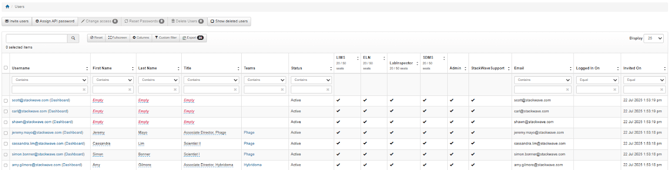
When the system is initially configured, StackWave will ask for a list of users as well as which users should be administrators. There are three roles which can be applied to users of StackWave Affinity -
- LIMS Administrator - Users with the LIMSAdmin role gain access to the Admin menu, found in the black bar at the top of every page in Affinity. This menu allows for configuration of many different elements of the system, such as the values which populate various dropdowns. This role also allows for editing and deleting records within the system.
- Platform Administrator - Users with this role are able to configure access to the system by inviting users, assigning roles, and revoking access.
- Inventory Administrator - Users with the Inventory Admin role are able to modify the layout of the inventory module - i.e. the different labs, freezers, shelves, etc, that are available for scientists to use. All users are able to create tubes, plates, and vials within inventory.
StackWave support will invite your initial users, but users with the Platform Admin role can also grant or revoke access by going to Admin->Users. Clicking Invite Users will allow you to enter the email addresses of users (comma-separated to invite more than one at a time).
Now that your users have access, it's time to start configuring Affinity for your organization’s needs. All users will see a list of available modules on the left-hand side of every Affinity page. Each module can be expanded or collapsed, and under each module is the list of pages within that module. The most common first steps for new users to familiarize themselves with Affinity are to set up programs and projects in the Organization Module, register materials in the Material module, set up their Inventory structure, and finally register their physical inventory.
The Organization Module
The organization module allows teams to structure their work around Programs (or Customers) and Projects. Each Program can be divided into one or more Projects, and each Project can be organized around one or more Targets. Many entities within Affinity will request or require the user to specify a Project - these can be considered a set of folders which group all the different entities related to a real world project together, and a program can be considered a folder containing any number of projects.
To create your first Program, click on the Programs link in the Organization module. Click Register to create a new Program. While there are no required fields (indicated by a red *) for a Program, it is recommended to populate as much information about the Program as possible! After submitting your Program registration, you will see it appear in the grid below. These grids are a ubiquitous concept in Affinity, and are commonly referred to as the Index page. Each row in an Index will have an ID which can be clicked to navigate to the Details page of that entity. On the index page, users can quickly search or filter to find entities of interest, and columns can be added or removed from the view as needed using the Columns button.

After your Program is registered, create a Project. When you are registering a project, the system will ask you to specify a program for it to be grouped into. Click on Projects in the Organization module, and then click Register.
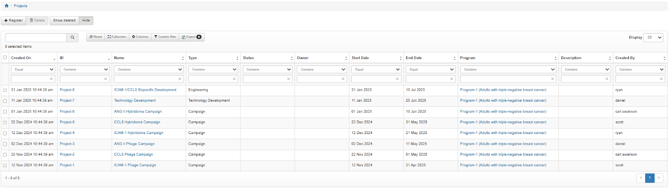
Before continuing, you may want to define a number of different projects or explore other organizational entities in the module. For example, a number of targets can be defined and then specified during registration of entities without being limited to projects (i.e. an entity in Project1 and an entity in Project2 might be targeting the same antigen), or tags can be defined which allow users to quickly group similar entities together (i.e. “Strong Binders”). You can always return to the organization tab later to further flesh out your team’s ability to organize the data within Affinity.
The Materials Module
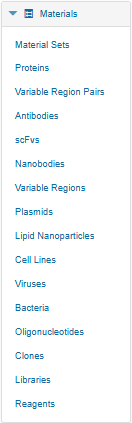
The Materials module is the Affinity bioregistry. Here you’ll find pages to define the proteins, plasmids, cell lines, and other reagents for your organization. This guide will describe registering a set of Antibodies, but the general workflow for material registration can be applied to any type of entity.
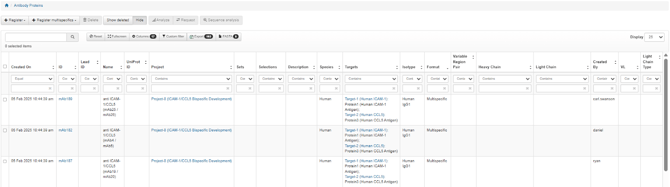
Click on Antibodies in the Materials module, then click on Register and select the “From sequences” method. Since you don’t have other entities registered yet, we will register by sequence, however users can choose By Plasmid to select a heavy chain and light chain plasmid for antibody registration, or By Variable Region to select two VR’s which have already been registered, etc. once those respective material lists have been populated.
When registering materials, the user will be presented with the Affinity Registration form. The columns of the form will vary based on the entity type being registered, but in general, all registration forms will allow users to either manually populate the table within the web page or click Download Template to download an Excel template with the column headers of the registration form being used for population outside Affinity. You can then click Import in the registration form and select that populated template to bring in your sheet all at once. If the columns of the selected sheet do not match those in the template (i.e. a column is named “Antibody Name” rather than “Name”), the system will prompt you to map your sheet’s columns to those expected by the registration form. Once your data is in the table and ready to import, click Register Antibodies to import the records. The system will validate the data in the sheet, and if anything fails validation, the cell will be highlighted red and the user can hover over the cell to determine how to remedy before re-importing.
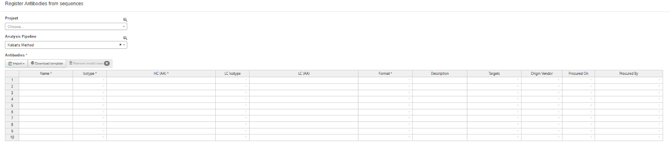
When registering an antibody, if an analysis method is selected, Affinity will check if the variable regions of the specified antibodies already exist in the system. If they do not, new Variable Regions will be registered based on a selected analysis method. Affinity will also automatically check for duplicate entities during validation - for example, if an antibody with the same sequences has already been registered, Affinity will warn the user during registration. If the heavy chain has already been registered but the user is providing a light chain which has not been registered, the system will register a new light chain and associate the existing heavy chain with this new antibody.
In addition to antibodies, analysis can also be performed during registration of variable region pairs and nanobodies. A default analysis method (editable by administrators) will be selected automatically, but scientists can select a different method if desired, or remove the analysis method altogether to specify that no analysis should be performed.
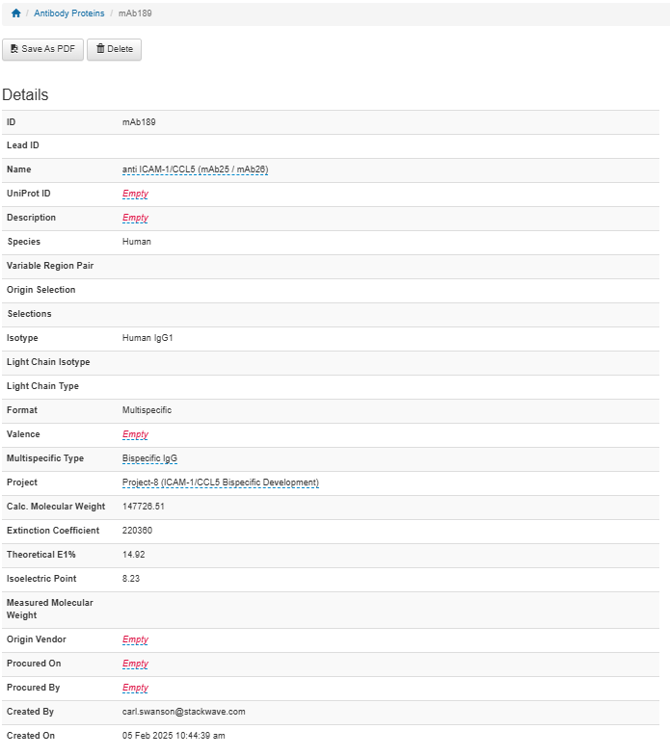
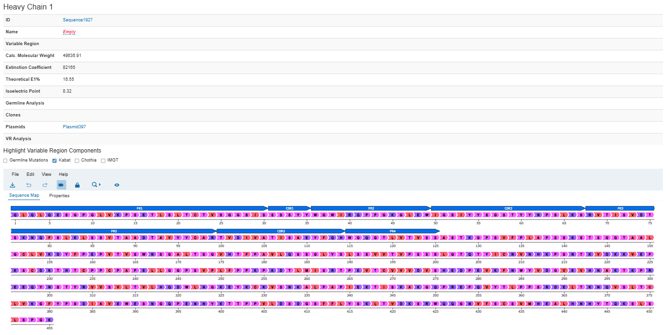
After your records have been loaded, they will populate in the Antibody index page. You can click on the ID or Name of an antibody to navigate to its details page. These details pages will vary in content depending on the type of reagent, but in general some similarities will be found - the overall details such as name and project will be defined at the top, any lots or samples of the reagent which have been registered in inventory will be listed, any assay results loaded against samples of the reagent are displayed, and for reagents with sequences, a sequence section will show users the AA/DNA sequence as well as any annotations from analysis.
Materials vs. Lots/Samples
Affinity distinguishes between the conceptual definition of a reagent and its physical representation as actual samples and aliquots. Records within the Materials section represent the conceptual definitions - i.e. the attributes of ProteinX which define it, and are shared by all tubes/vials/plate wells containing that material. The physical representation of a record, i.e. the volume and concentration of a tube of ProteinX, are defined by lots and/or samples of the material.
You will often see this connection in the ID’s which are automatically assigned by Affinity. For example, a newly registered antibody will have an ID with the antibody prefix and an automatically incrementing number, such as mAb120. Each lot and tube or vial of that material will use that material ID and append “-X” where X is an incrementing number as well. In the above case, if we had three tubes of mAb120, they would be identified as mAb120-1, mAb120-2, mAb120-3. A noteworthy exception are samples in microtiter plates. These samples are named for their plate and well instead.
The next step of our getting started guide will focus on registration of physical entities. In order to register these physical entities, we will need somewhere to “place” them, so the next section will focus on defining Affinity’s representation of your organization’s lab space.
The Inventory Module
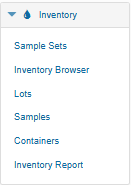
The Inventory module allows for the representation of your organization’s storage areas, freezers, shelves, boxes, plates, tubes, etc. Click on Inventory Browser in the Inventory module to continue.
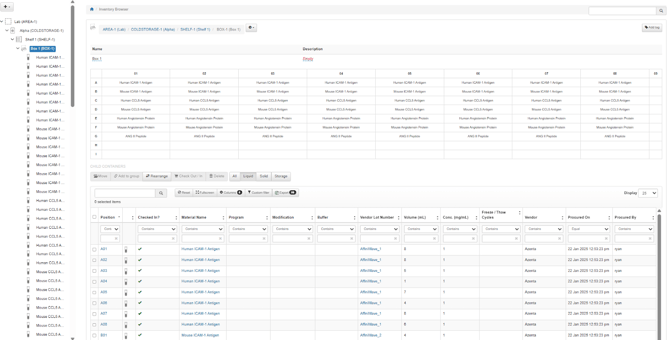
The Inventory Browser is broken up into two main sections - on the left is the inventory browser tree, which allows users to define and navigate their virtual lab space, and on the right are the details of the currently selected element.
To perform the next steps, please ensure your user account has the Inventory Admin role applied - reach out to StackWave support at support@stackwave.com for any help needed with this.
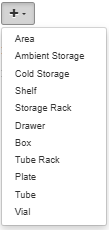
Click the + button in the upper left of the Inventory Browser - you will be presented with the list of different types of structure which can be defined for your inventory. The broadest definition, Area, is often used to represent an overall physical location, i.e. “West Lab” vs. “East Lab”. Select Area and give it a name. Next, create some number of storage spaces - for example you can create two freezers (cold storage) within one of the Areas you created. Continue to create containers in whatever level of details is right for your organization. This could include defining a number of shelves, a number of drawers on those shelves, and any boxes or tube racks in each drawer.
Areas, freezers, and other containers within the inventory browser tree can be clicked to view their details, including all of the things it contains. Containers can also be dragged and dropped to quickly move them around within the inventory structure.
Lot Registration
Now that you’ve created your reagents and a place to put them, you and your users can register the tubes and plates used in your lab. There are a few places in Affinity to register tubes, but we will start where we are: in the Inventory Browser.
Click the + button again and select Tube. This will prompt you with a registration form for tube definition, and there are a few different options to walk through;
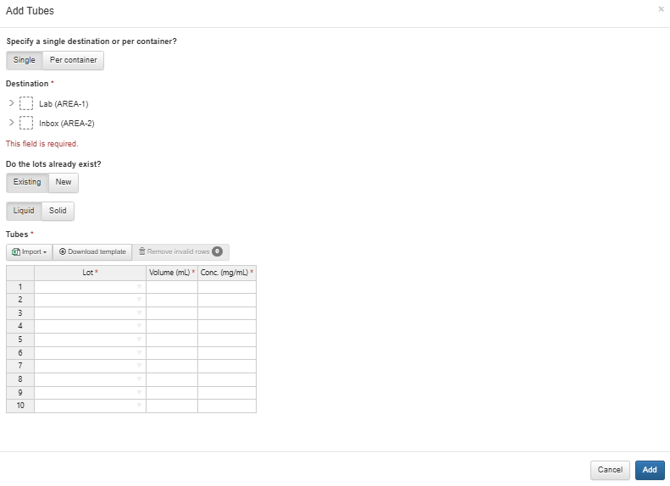
- Your choice for the first toggle will depend on whether you are placing the tubes in a general location (i.e. all of the tubes being registered are going into the same drawer) or within specific locations in boxes. If you simply want to place all of the new tubes somewhere, and you’re not concerned in which box slot they’re being kept, for example (or you plan to rearrange them later), select Single. If you want to place the new tubes in different, specific locations, select Per Container. Your selection will change the form accordingly - if Single is selected, you will select the destination location from the Inventory Browser tree, whereas if the tubes are being placed in specific positions within boxes, the overall destination section will be removed and the table will have columns for the specific location and the position in that location (if any).
- The second toggle depends on whether there are already lots defined. If you have already registered a lot of ProteinX and you are now registering a number of new tubes from that lot, this would be the choice you want. In our case, we are registering new lots, so we will select New. This will change the registration form to allow you to choose the materials from which new lots are being created and to provide any other details of the lots you want to record, such as buffers, modifications, vendors and vendor lot numbers, etc.
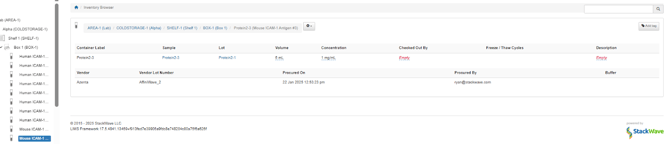
Populate the table to create at least one tube, selecting at a minimum the reagent, the vendor (Note: If there are no vendors available for selection, you will need to ask a user with the LIMS Administrator role to go to Vendors administrative menu and define at least one vendor), and the volume and concentration of the lot. Submit the form to see the tube(s) appear in the inventory browser tree. The samples in these tubes are now available for use throughout the system.
As mentioned earlier, there are multiple locations within Affinity where lots and samples can be registered. Within the Inventory Module, there is a Lots index which lists all lots registered in Affinity - the registration form on this page is most useful when registering multiple lots of varying materials, and will walk you through placing these tubes in inventory if desired. There is also a Lots section on each reagent’s page from which you can register new lots of that reagent.
Where to go from here…
Congratulations! You have learned the foundations of navigation and registration within StackWave Affinity. We encourage you to continue exploring the different registration options to identify those best for your workflows and familiarize yourself with the concepts and paradigms of the system. The guides below will support further exploration of StackWave Affinity’s features:
Submitting and Reviewing Assay Results