![logoTRANSPARENT-BG_no_LLC_small.png]](https://www.stackwave.com/hs-fs/hubfs/StackWave_Images/logoTRANSPARENT-BG_no_LLC_small.png?height=40&name=logoTRANSPARENT-BG_no_LLC_small.png)
Your organization’s protein production process can be managed entirely within StackWave Affinity. Scientists can request desired amounts of protein via a simple form, and expression managers can fulfill those requests through existing inventory or track the entire process of protein expression for each request.
Requesting Protein
At the top of every page in Affinity, there is a Request Protein link. Clicking this link will open the form below.
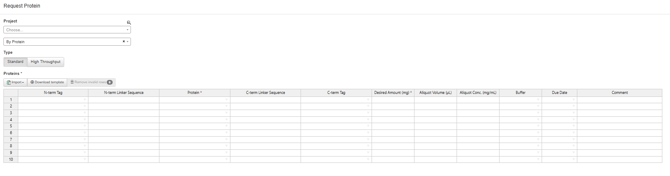
Optionally provide a project to associate the request and resulting proteins, and then choose the method you’d like to use to generate the request:
- By Protein - Specify one or more existing proteins for expression
- By Variable Region Pair - Specify a variable region pair and isotype(s) for expression - this will generate new antibodies combining the specified fragments
- By Clone - Specify a clone and isotype(s) for expression - as above, the variable regions associated with the clone will be combined with the specified isotypes to create new antibodies
- By Plate - Specify a clone plate and isotype(s) for expression - this provides a simpler method of submitting large numbers of clones out of screening
The remaining toggles above the grid can be ignored for this guide. At a minimum, the request grid will require the information that corresponds to your selected request type (i.e. protein if requesting By Protein, clones if requesting By Clone), as well as a desired amount. Populate any additional fields as desired and submit the request when ready.
Administrators of the application can specify one or more email addresses in the Application Settings to be notified via email whenever a scientist makes a new request.
Protein Request List
To review the list of all protein requests in the system, click on the Protein Request link in the Protein Production module in the left bar.
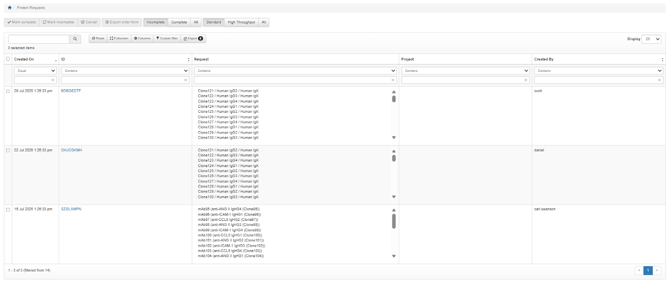
Requests will automatically be assigned a unique ID, and scientists can click on the ID to review details of the request. Requests can also be marked as complete here (essentially skipping the fulfillment or expression workflow), or canceled entirely.
Protein Expression - Triage
When a member of the expression team is ready to act on the list of active requests, they will click on Protein Expression in the Protein Production module. This page consists of five tabs, the first of which is Triage.
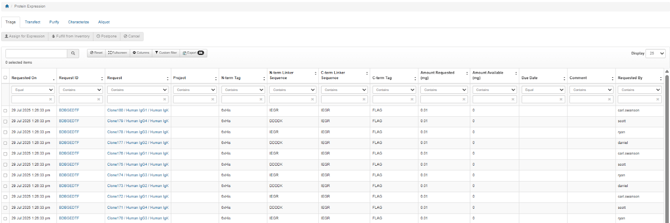
On the triage tab, expression team members can determine whether a task should be fulfilled from inventory or sent to expression. For all requested proteins, Affinity will compute the total amount available in inventory and provide this in the Amount Available column. If you would like to satisfy a request using existing inventory, select the task and click Fulfill from Inventory. Affinity will walk you through selecting the containers to satisfy the request. Upon submission, the task will be marked as complete.
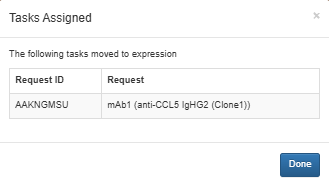
If the task will instead be fulfilled via expression, select it and click Assign for Expression. You will be prompted to identify the scientist who will be responsible for expression. Affinity will then check the sequence of the requested protein and compare it to the plasmids in the system. If there are plasmids registered which can express the requested protein, Affinity will notify you that the tasks have been moved to expression, as seen below.
However, if one or more chains of the requested protein do not match plasmids registered in Affinity, the system will require that plasmids be registered first. In this case, after selecting the scientist for assignment, Affinity will note that the tasks have been moved to vector construction, as seen below.
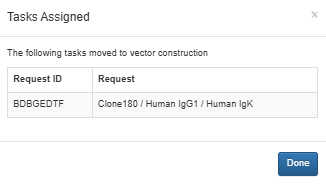
We will return to the remaining steps of the expression workflow that are represented by the remaining tabs on the Protein Expression page, but next we will follow the path of a protein request that requires vector construction.
Vector Construction
Vector construction tasks can be created automatically from expression tasks as described above, or can be explicitly created on the Vector Construction page. Click Vector Construction in the Protein Production module to continue.
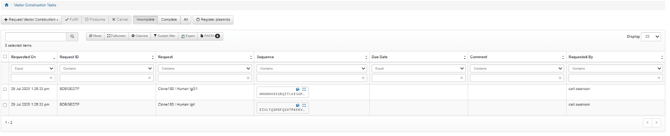
To satisfy a vector construction task, scientists can click the Register Plasmids button, which is the standard plasmid registration form - if any of the plasmids registered satisfy one or more of the vector construction tasks in the queue, they will automatically be fulfilled. Alternatively, you can use the fulfillment wizard. Select the tasks using the checkboxes on the left and then click Fulfill to continue.

Affinity will first check existing registered plasmids to see if there are any which can satisfy the selected tasks and will suggest them on the first step of the wizard. For any tasks which do not have a plasmid selected after clicking Next, the wizard will ask for the details of the plasmid to register - at a minimum a Name and Coding Sequence is required for registration. Affinity will then verify that the DNA sequence provided in the coding sequence codes for the requested chain and will warn the scientist if not.
After submitting the form, the vector construction tasks will be completed, and the corresponding protein expression tasks will be able to advance.
Protein Expression
Once both plasmids have been registered, you can return to the Protein Expression page of the Protein Production module. Click on the Transfect tab and the request which was pending vector construction will now appear in this list in order to continue expression. To perform transfection, select the appropriate tasks and click Transfect.
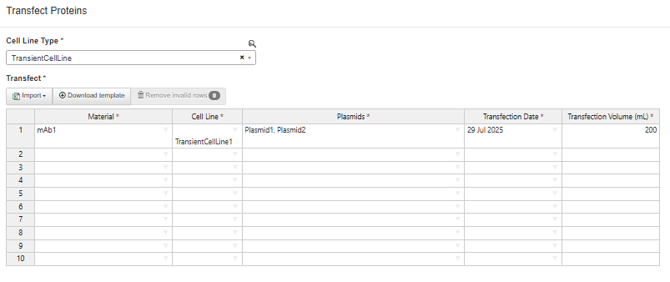
Select the type of cell line for transfection - Affinity automatically adjusts the form accordingly. If using a transient cell line, Affinity will automatically select the plasmids in the system which match the requested protein. Provide a Transfection Date and Volume and submit the form to move the tasks into purification.
Click on the Purify tab to review the list of tasks available for purification.
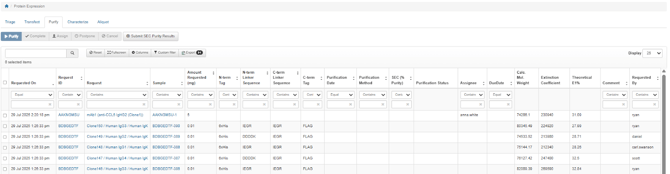
Select one or more tasks and click Purify. Select a purification date and one or more methods of purification and submit (note that there are additional steps if you are performing Proteolytic Cleavage, but we will skip those for this guide).
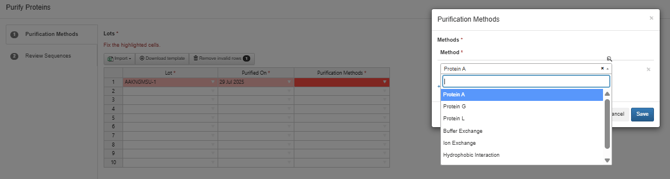
Tasks do not automatically move to the next step of the process as purification steps are recorded - this is because you can perform any number of purification steps before continuing. Once you are ready to move on, select the tasks and click Complete to continue.
After completing purification, the tasks will appear in both the Characterization queue and the Aliquot queue. Characterization is not required to complete the workflow, but does provide a convenient method for recording expression-related data in one place. If desired, select the tasks and provide characterization details (yield, concentration, endotoxin, SEC, SEC image) and submit. These values can also be recorded via assay data upload, a guide for which can be found here.
The aliquot step is the final step of expression. On this step, you will record the resulting tubes being provided to the requestor as well as those any additional tubes being placed in inventory.
Select one or more tasks and click Aliquot. The first step of the aliquot wizard will provide a brief summary of what has been requested - click Next to continue.
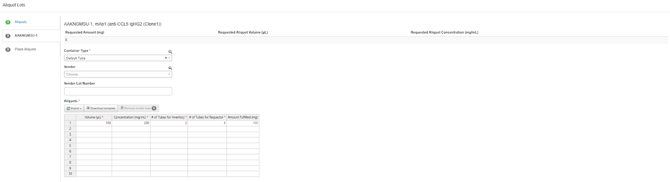
The second step will optionally ask for the container type, vendor, and vendor lot number and will require the volume and concentration of the tubes, the number going to inventory, and the number going to the requestor. Click Next to continue.
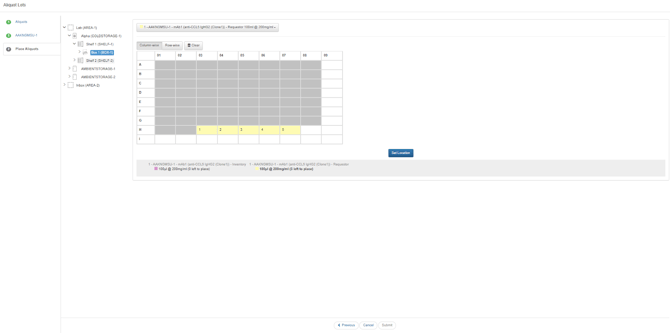
The final step of the wizard asks the scientist to place the tubes which were expressed into inventory. Choose the appropriate location in inventory. If the selected location is a box, a box map will be displayed in which greyed-out cells indicate occupied positions. Click Set Location to finalize the location of the tubes, and once all tubes are placed, click Submit to finish the expression workflow.
The scientist who submitted the protein request will be notified via email that the request is complete. Note that tubes which were marked as being provided to the requestor will be created but automatically deleted, while tubes going to inventory will have the volumes and concentrations specified.
More To Explore…
You’ve now completed a standard protein request and expression workflow! Affinity also supports high-throughput requests for large plate-based expression of smaller amounts of protein, which can be requested by changing the Standard/High Throughput toggle at the start of the request and is managed through a dedicated queue on the High Throughput page of the Protein Production module. There is also a Lot Review page, where scientists can quickly review all lots registered in affinity, filter and compare their characterization data, flag problematic lots, or automatically generate a new protein request for the same protein as a selected lot.