![logoTRANSPARENT-BG_no_LLC_small.png]](https://www.stackwave.com/hs-fs/hubfs/StackWave_Images/logoTRANSPARENT-BG_no_LLC_small.png?height=40&name=logoTRANSPARENT-BG_no_LLC_small.png)
Administration of StackWave Affinity is performed by users whose accounts have been assigned specific roles. These roles grant various permissions, detailed below, allowing you to manage users and customize Affinity to the needs of your organization.
Roles
There are three roles which can be assigned to users of Affinity. These are applied by administrators in the Users page of the Admin menu by going to the users profile page by clicking on the email address. Click the Add Role button to edit a user’s permissions.
- LIMS Administrator - Users with the LIMS Administrator role gain access to the bulk of the Admin menu, found in the black bar at the top of every page of Affinity. These tools allow for configuration of many different elements of the system, such as the values which populate various dropdowns in the system, the reference databases for sequence analysis, custom assay type definition, and more. This role also allows for editing and deletion of more records within the system than a regular Affinity user.
- Platform Administrator - Users with this role are able to configure access to the system, such as inviting users or revoking access.
- Inventory Administrator - Users with the Inventory Administrator role are able to edit the structure of the inventory browser - i.e. the areas, freezers, shelves, etc. All users are able to create tubes, plates, and vials within inventory.
Admin Menu Overview
The admin menu is the main location in Affinity for administrators to manage the system. It is broken up into nine sections:
- Application - This section contains the Application Settings page which is a configuration panel for various aspects of the system, pages for managing users and teams, a licensing page which will show the max number of licenses purchased by your organization and the number in use, a configuration panel for email SMTP settings, and a page for management of individual modules within Affinity.
- Assays - Create custom assays here, picklists (custom dropdowns for use in custom assays), and edit the list of cell signaling types available in your assays.
- Inventory - Edit plate layouts for use in experiments as well as the list of vendors and inventory groups available for selection by your users.
- Discovery - Contains a series of administrable fields which control the options available to your users in dropdown menus within Affinity. For example, Library Methods can be edited to make new options available in the Methods dropdown during library registration.
- Sequence Analysis - Allows admins to register new reference databases for sequence analysis in Affinity, specify germlines, and define sequence patterns which will automatically be highlighted on a sequence display after analysis is performed
- Organization - Edit the prefixes which are automatically applied to entities within Affinity - for example, new proteins will be named ProteinX (where X is an autoincrementing value), but this can be edited such that newly registered proteins would have the ID ProtX. You can also edit the Program types and project statuses available during registration of each.
- Production - Similar to Discovery described above, each page in this section is an administrable field associated with the Protein Production functions of Affinity.
- In-Vivo - Provides a set of administrable fields associated with In-Vivo studies.
- Analysis - Customize measurements available to users.
Inviting Users
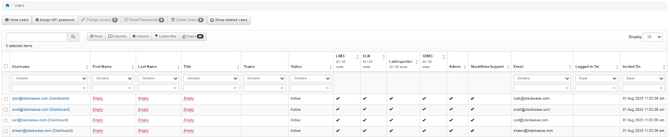
Users of Affinity can be managed by admins with the Platform Administrator role on the Users page of the admin menu. This page will list every account which has been invited to Affinity - you can see the number of licenses your organization owns and users can be invited by clicking the Invite Users button. Enter an email address, or multiple addresses separated by commas, and click Submit. Affinity will send an invitation email to these users, and when they log in the first time, a license will be applied to their account.
Creating Teams
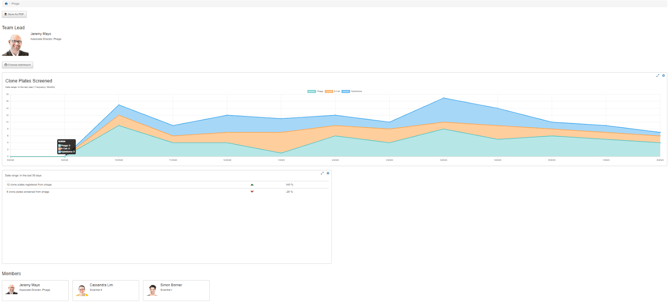
Users can be grouped together in Teams in order to provide a Team landing page with its own dashboard (dashboards covered later in this guide), which can be customized to show the data and reports most relevant to the team.
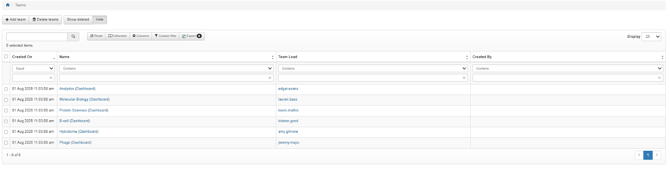
To create a team, click on Teams in the admin menu, click Add Team and enter a team name. You can specify a team lead if desired, and then choose from the users in Affinity to associate with this team.
Each team defined within affinity will appear on the home page in the Teams section. Admins can apply a dashboard to a team in order to display that in the Teams section as well, and it will also be displayed on the Team’s page.
Administration Checklist
Below is a suggested list for administrators to review to be sure the system is set up and ready for their team to dive in.
- Default analysis methods specified in Admin->Application Settings->Sequence Analysis.
- Default inventory area specified in Admin->Application Settings->Inventory Management
- Programs and projects defined
- Home Page configured - company name, logo, and tagline defined, dashboards for programs configured.
- Users invited
- *Optional* - Signature and counter-signature messages updated according to your company’s policies
- *Optional* - Teams defined and dashboards configured
- *Optional* - Administrable lists reviewed and customized - review and edit each administrable list (e.g. Admin->Discovery->Project Types).