![logoTRANSPARENT-BG_no_LLC_small.png]](https://www.stackwave.com/hs-fs/hubfs/StackWave_Images/logoTRANSPARENT-BG_no_LLC_small.png?height=40&name=logoTRANSPARENT-BG_no_LLC_small.png)
Cataloguing Parts
Part of the Administrative menu includes a new Molecular Biology section that provides access to the Affinity Sequence Parts Catalog. The catalog allows you to organize and record any sequences that your scientists will use to build new vectors. Out-of-the-box, the catalog includes all of the protein chains, variable domains, and constant regions that your team has recorded. In addition, there are default categories for protein tags, linker sequences, signal sequences, and resistance genes.
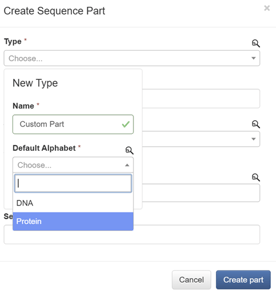
To create a new category of sequence part and begin registering new sequences, first click the "Sequence Parts" link under the "Molecular Biology" heading in the Admin menu, then click the "+ Create" button. The "Type" dropdown includes an option at the top labeled "[New Type]." Select this option and then enter your new category name - for this guide we'll just use "Custom Part." Next, indicate whether you'll be recording these parts as DNA sequences or amino acid sequences. Finally, click "Save" to create the new category and return to the part creation form. Complete the remainder of the form by providing the name and sequence for the new part, then click the "Create part" button.
A new tab will appear above the table of sequence parts with your catalog name, and it will contain the named sequence you just recorded. Continue to add as many categories and sequence parts as you need before moving on to the next section, where we'll use these parts to design a new backbone vector.
Vector Design
Under the Molecular Biology heading in the left-hand navigation bar, click the "Vector Design" link at the bottom. An empty circular plasmid editor will be displayed. You can initially populate the editor one of two ways: by importing a sequence file, such as Genbank or FASTA, using the File->Import Sequence option; or, by copying and pasting a sequence into the editor. To paste into the editor, you can either click on the circular map visualization or the editor on the right-hand side of the page.
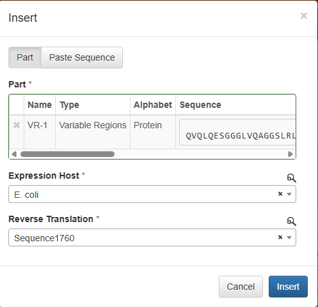
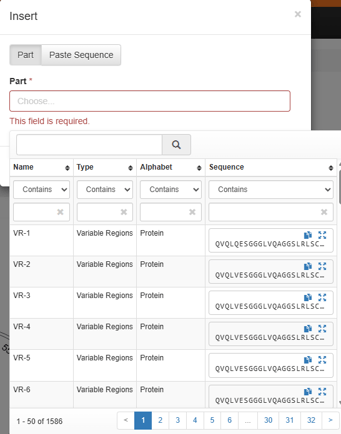
Once you have your initial sequence, you can add and insert elements into it from the sequence catalog. Right-click on the part of the map or linear sequence into which you want to insert a part and click the "Insert" button. In the form that pops up, click into the Part box to search through a list of all available parts in the system. If the part is defined as an amino acid sequence, you'll be prompted to either select an existing DNA sequence or to run reverse translation for a particular expression host, which will create a new DNA sequence that can be selected again in the future. Click the "Insert" button when you're finished to insert that DNA sequence into the plasmid.
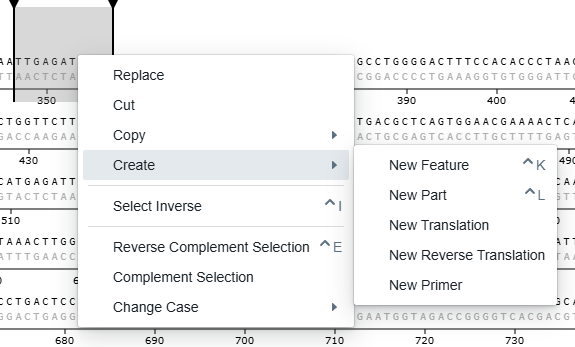
In addition to inserting new parts, you can also annotate the plasmid or create parts from stretches of DNA that you select. To annotate a part of the plasmid, highlight the region and right-click on it. In the pop-up menu, click on Create->New Feature. In the menu that appears, give your feature a name and a type (by default, it's simply the generic Genbank misc_feature type), then click "Save" to add the feature to the plasmid map. If instead you want to register the highlighted region as a new part, click Create->New Part and complete the form by assigning a name and a catalog type.
Once your plasmid has been edited and annotated to your liking, click the “+ Register plasmid” button at the top of the page. Provide a name, and optionally enter a description and select one or more types to further characterize the plasmid, then click the “Submit” button.
Simulated Cloning
With our backbone vector defined, we can now simulate the cloning of proteins into our vector to create new plasmids and corresponding DNA inserts. Before performing this step, you'll need at least one registered protein. If you haven't yet registered an antibody or other protein in the bioregistry, you can find the steps in the Materials Module section of this Getting Started guide. For this example, we'll use an antibody from the Antibodies page, but the steps are the same for any protein.
From the grid, check the boxes next to the proteins that you want to clone, and then click the "Clone vectors" button in the toolbar above the grid. A form will load that allows you to define the simulated cloning method that Affinity should perform. Select the backbone vector(s) that you want to use for each chain of the protein, then select your cloning method and the required details for cloning. In this example, restriction digest is chosen and the restriction enzymes on the 5' and 3' end of the cloning site are filled in. Once completed, click the "Generate vectors" button. The system will perform a simulated cloning step and produce a list of the appropriate DNA inserts and expected plasmids.
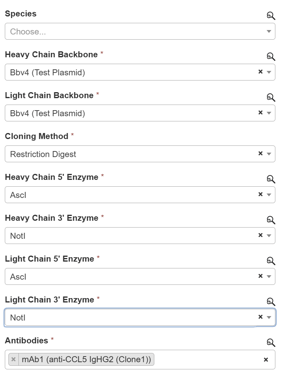
From the lists of resulting plasmids and inserts, you can then review the generated sequences or export them to Excel for submission to a vendor.
Sequence Verification
Once your plasmid is cloned and sequenced, you can use Affinity to verify that the sequence is correct and to review chromatograms obtained during sequencing. First, navigate to the page for one of your newly-cloned plasmids by clicking Materials->Plasmids in the left-hand navigation bar, finding your plasmid in the grid, and clicking on its ID. Scroll down to the Lots section and click the "Register lots" button. Fill in the first row of the form to create a new lot. The only required field is the vendor, but include any additional details you would like to have recorded for your lots, such as the vendor's own internal ID or the kit size used for plasmid prep. Click "Submit" when you are finished.
The newly-created lot will now appear in the table. Check the box on the left-hand side, then click the "Verify plasmid sequences" button. In the upload form that appears, either drag the sequence file onto the gray canvas that says "Drop file here" or click the "browse files" link to locate the file on your computer. Click the "Upload 1 file" button, and when the upload completes, click "Next." On the next screen, you'll see an overview of where the "Expected" (plasmid) sequence and the "Experimental" (read) sequence differ as indicated by red lines in the "Experimental" section.
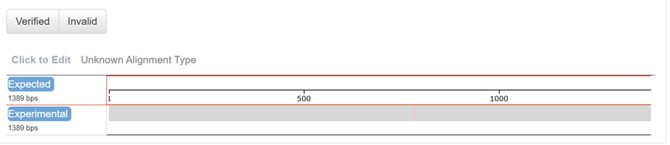
Hovering over the "Experimental" track, you'll see the words "Inspect track" appear. Clicking on this track will then expand both views so that actual nucleotide sequences are compared. Use the green slider at the bottom to move around within the sequences and inspect the differences. Clicking on the eye icon above the track will reveal a menu with different visualization options. To review an available chromatogram, click the "Chromatogram" option.
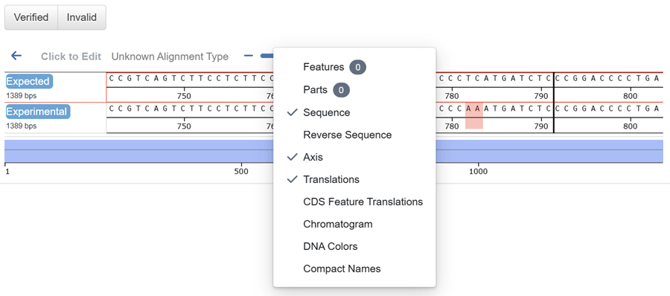
The chromatogram will then display between the slider and the sequence tracks.
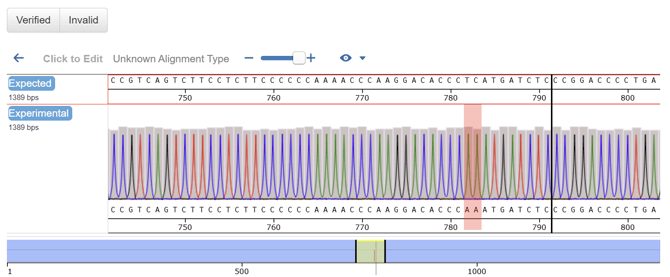
Once you've determined whether the sequence is correct, click "Verified" or "Invalid" and then the "Save verification status" button to record your designation.