![logoTRANSPARENT-BG_no_LLC_small.png]](https://www.stackwave.com/hs-fs/hubfs/StackWave_Images/logoTRANSPARENT-BG_no_LLC_small.png?height=40&name=logoTRANSPARENT-BG_no_LLC_small.png)
Affinity includes an Electronic Laboratory Notebook (ELN) that is available to all users of the system. This guide will walk you through creating a notebook, composing a note, linking to records from within a note, using templates to more quickly write notes, and signing and countersigning notes.
Notebooks Overview
All notebooks are accessed in Affinity within the Notes module. Click on Notebook to begin. Click the plus sign on the upper-left side of the page to create a new note - this dialog will also allow you to create a new notebook. In the Notebook dropdown of the resulting modal, select New Notebook and enter a name for your notebook. Enter a name for your note, and click Create Note.
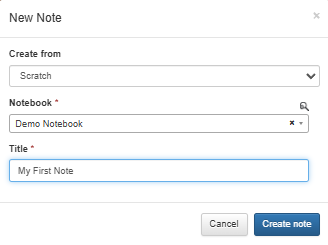
Each note is made up of any number of sections. When your note opens, it will automatically prompt you to create your first section. There are four types of sections:
- Free-form - This is a free-form text entry section with common word processing tools.
- Spreadsheet - Provides an in-browser spreadsheet for capturing tabular data.
- Materials - Select from the reagents registered in Affinity and choose which attributes of those materials you would like to include.
- Assay Results - Select an assay type and then choose the results of that assay that you would like listed in your note.
Create whichever type of section you would like, giving it a name and selecting the required options as needed. The section will then be added to your note. You can continue to experiment with adding other sections here if desired. Other tools available in the top group of buttons include attaching files, tagging the note with a tag defined in the Organization module, and re-ordering or removing sections with the Manage Sections button. Clicking the gear icon at the top of the notebook will allow you to move or copy the note to any notebooks to which you have access.
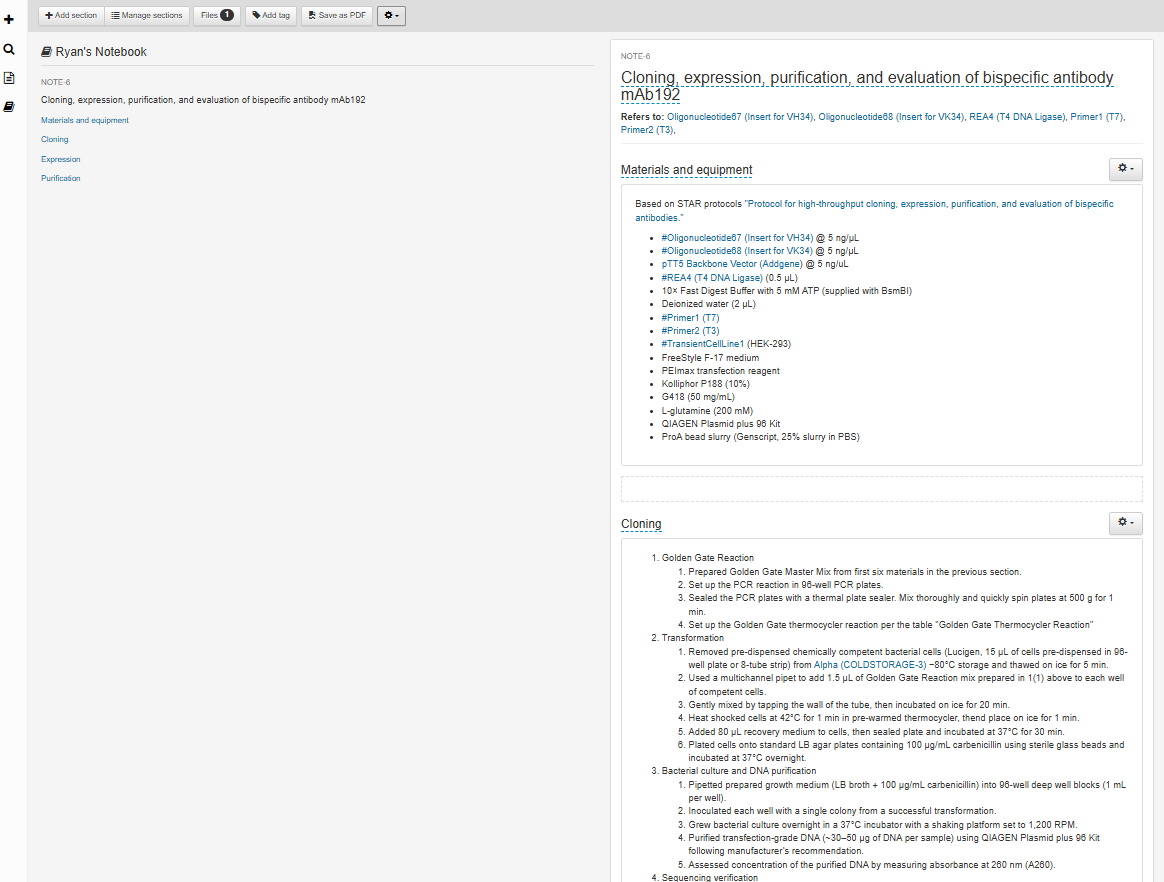
Other tools in the upper left-hand button group include the magnifying glass icon, allowing you to search within notebooks to find terms of interest. The third icon allows you to browse available notes, and the fourth shows all notebooks within Affinity. While you will not be able to edit other users’ notebooks, they will be visible for review.
Linking to Materials
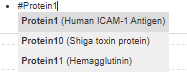
Within a note, it is often useful to be able to create a link directly to a reagent within Affinity. To do this, type the # symbol into a free-form text field, and then begin to type the reagent’s ID to search the bioregistry and display reagents that match. Select the desired reagent to create a direct link to its page in Affinity. For example, linking to #Protein1 will allow you to create a link from your note to Protein1’s page. Additionally, the note will be listed and hyperlinked under the “Related Notes” section on that page.
Section and Note Templates
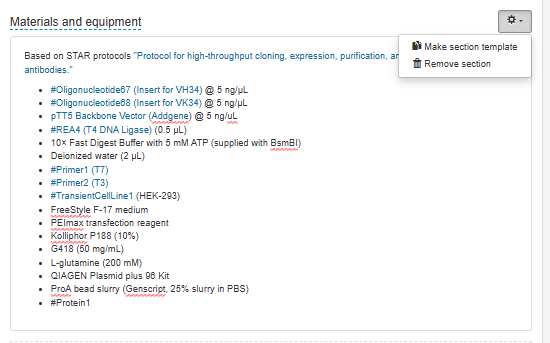
Section and note templates can be used to save commonly-used formats for composition. To create a section template from an existing section of your note, click the gear in the upper right-hand corner of any section and choose Make Section Template. Similarly, clicking the gear at the top of the note and selecting Make Note Template will create a template from the entire note. When creating new notes or sections, you can change the field Create From to Template and select from available templates.
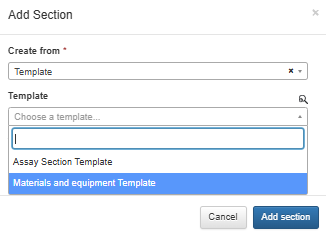
Section and note templates can be created and reviewed on their respective pages within the Notes module.
Signing and Countersigning
Users can sign their notes and subsequently send a request to a colleague for countersignature. Once countersigned, the note will become locked and will no longer be editable. To sign a note, click the gear icon at the top of the notebook and select Sign.
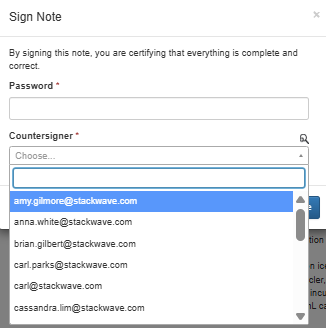
You will be required to enter your Affinity password, and then select a user for countersignature. They will receive an email indicating that you have requested they review and countersign the note. This request will also appear in their personal dashboard, available from the My Dashboard link at the top of every page.