![logoTRANSPARENT-BG_no_LLC_small.png]](https://www.stackwave.com/hs-fs/hubfs/StackWave_Images/logoTRANSPARENT-BG_no_LLC_small.png?height=40&name=logoTRANSPARENT-BG_no_LLC_small.png)
Uploading Assay Results
To begin uploading assay results, click on the Submit Assay Results button in the black bar at the top of the screen. The resulting form will first ask you to select the Assay Result type to be loaded. Out of the box, Affinity supports a set of commonly-used assays, though administrators can always specify new assay types (covered at the end of this guide).
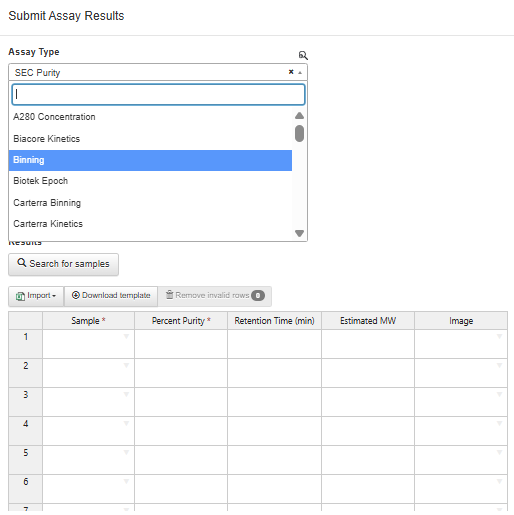
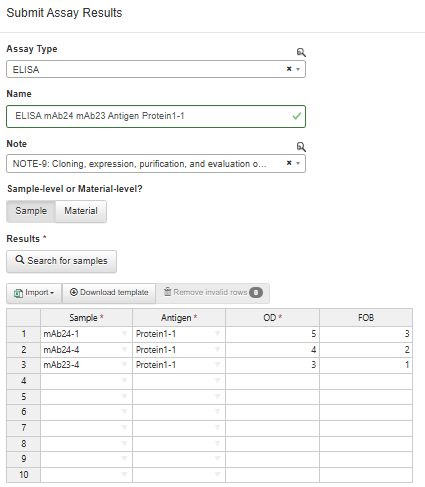
For this guide, we will use the ELISA assay as an example. Once the assay type is selected, the grid below will update to show the columns associated with that assay type.
Each set of assay results are referred to as a “batch” within the system, and scientists can name each batch if desired. Additionally, you can select a note from the Affinity ELN to associate these results with.
The Sample/Material toggle controls whether you are uploading results for individual samples of a reagent or directly for the reagent itself. This is the difference between, for example, connecting ELISA data to each well of plate of antibodies on the one hand (individual samples), or connecting it directly to the antibodies records on the other (directly for the reagent).
Using the Search for Samples button allows you to pre-populate the grid with samples that match certain filters. As with all data entry grids in Affinity, you can download the template which contains the expected columns of the assay type, populate that Excel file outside Affinity, and then import it later. As a note, some assay types will default to a file upload method (full list of supported instruments found here), but you can click the Enter Results Manually button to see the manual upload grid for that type.
Populate the upload grid and click the Submit button to upload the assay results.
Review Assay Results
Assay results can be reviewed on multiple pages in the application after they have been uploaded. The most common places to review assay results are on a reagent’s page, in the assay results section, or as part of a material or sample analysis (covered below).
To review the assay results of a specific reagent, navigate to that reagent’s page by clicking on that reagent’s name or ID. For example, to review the results for mAb24, a scientist could click on the Antibodies link in the Materials module, find or search for mAb24 in the grid, and then click its name or ID. The assay results section will contain a dropdown containing all of the assay types for which the reagent or its samples have data. Select an assay type to see all those results for this reagent.
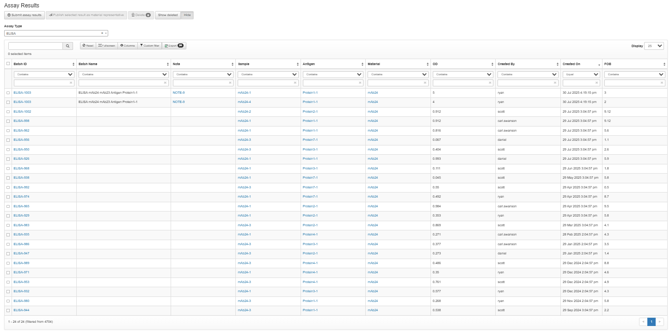
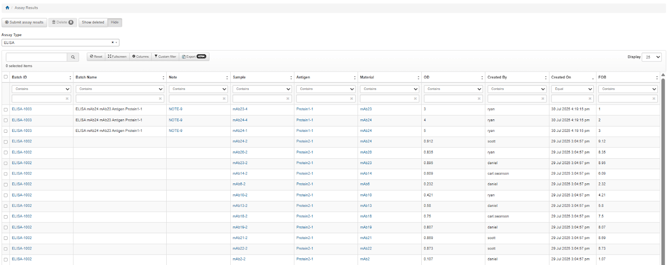
To review all of the assay results of a given type, navigate to the Assay Results page in the Analytics module. Select the assay type at the top of the page and all results of that type will be displayed below. You can search and apply filters to find the results of interest within this list.
Material Analysis
Scientists will often want to review the results of different assays for a set of reagents or their samples. This could be to identify trends or outliers, or to share results about key reagents or therapeutic candidates with colleagues. The Material Analysis and Sample Analysis tools support collating results for different sets of reagents, as well as scatterplotting to help identify correlations.
First, select the reagents or samples of interest in the search bar in the upper left. Next, click on Add Result Set. This form will allow you to select an assay type and then select the attributes of that assay type which you would like to review.
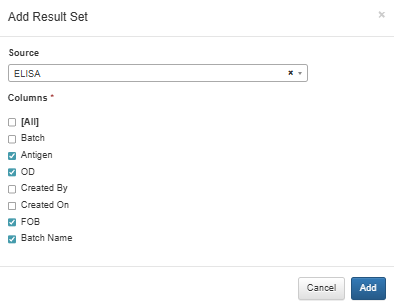
Click the Add button to populate your grid with the results for each reagent or sample. You can add multiple result sets, including multiple sets of the same assay results filtered in different ways, creating as complex an analysis grid as desired.
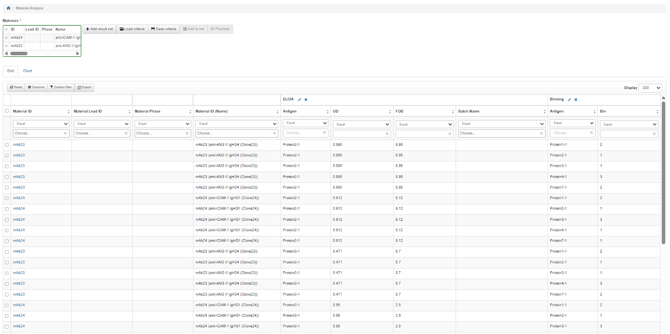
Clicking on the Chart tab above the table allows you to plot the data for a visual review, often useful in identifying outliers.
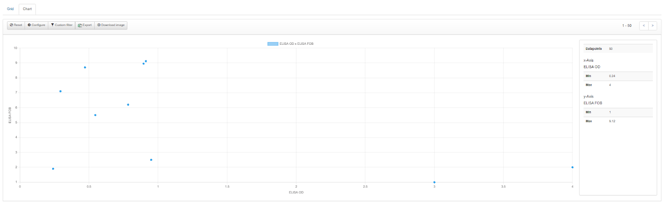
If you click and drag a box over the chart, you can click Filter to Box in the right-hand menu of the plot to reduce the result set under review to only those which meet your criteria. The filters on the Grid tab will then update to reflect the boundaries of the filter box that was drawn.
From this point, you are able to export the results to a tabular format for use outside of Affinity, or you can add the materials that meet your criteria to a set, allowing the list to be reviewed or recalled at a later time.
Custom Assays
While common assays are included out of the box in Affinity, system administrators can create custom assay types. To do so, click on the Admin menu in the top bar and select Assay Types. Click on Create Assay Type and provide a name for the assay. On the next page, you are able to add any number of fields to the assay. For each field, you will provide a name, the type of information to be entered (i.e. integer or decimal for numerical values, string for text values, image, etc.), whether or not the field should be required, and whether it applies to each sample or to the entire result set. Fields for the entire result set are a single input value applied to all results of the batch, whereas a sample-level field allows for a different value for each sample in the upload.
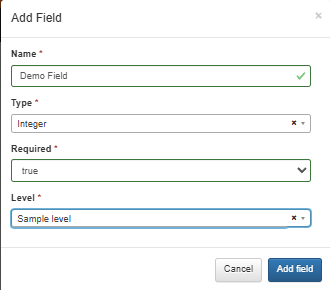
When all fields have been submitted, the assay type is ready for use by your scientists. As a note, once data has been uploaded against a custom assay type, the columns can no longer be changed.