![logoTRANSPARENT-BG_no_LLC_small.png]](https://www.stackwave.com/hs-fs/hubfs/StackWave_Images/logoTRANSPARENT-BG_no_LLC_small.png?height=40&name=logoTRANSPARENT-BG_no_LLC_small.png)
Chemical Registry
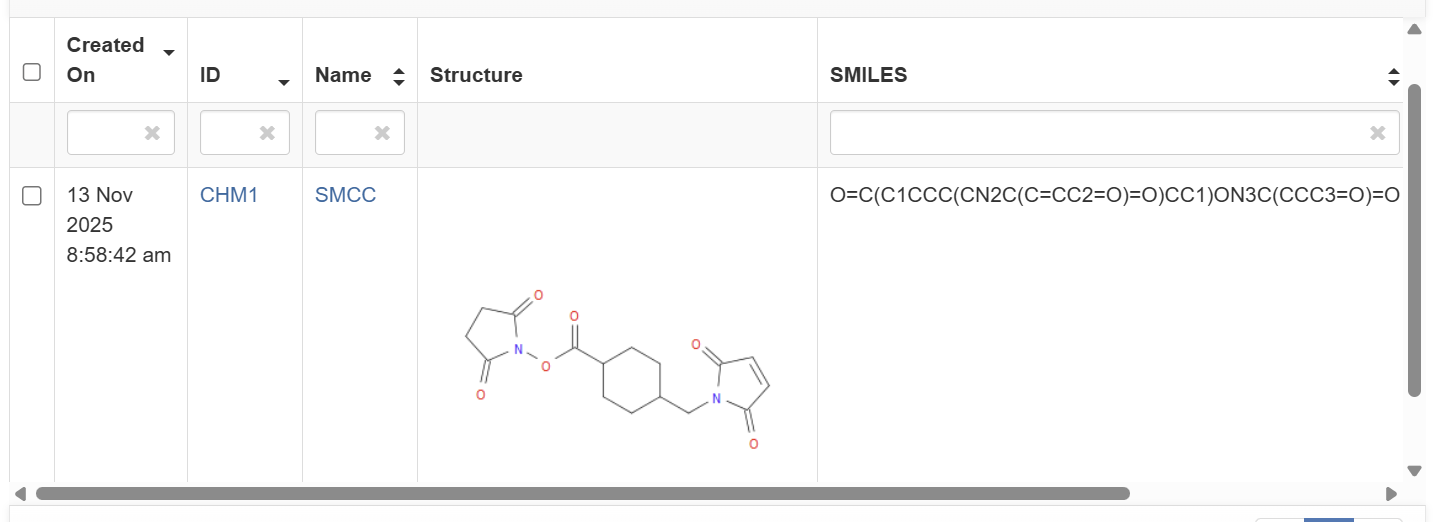
Affinity supports registration of new chemical reagents through two methods: registration by SMILES string, or registration via sketching. To register a molecule via SMILES, click Register->From SMILES on the Chemicals page in the Materials module, then provide a name, SMILES string, and optional description. Clicking the Register button will record the new chemical and display a rendering of the SMILES string in the table.
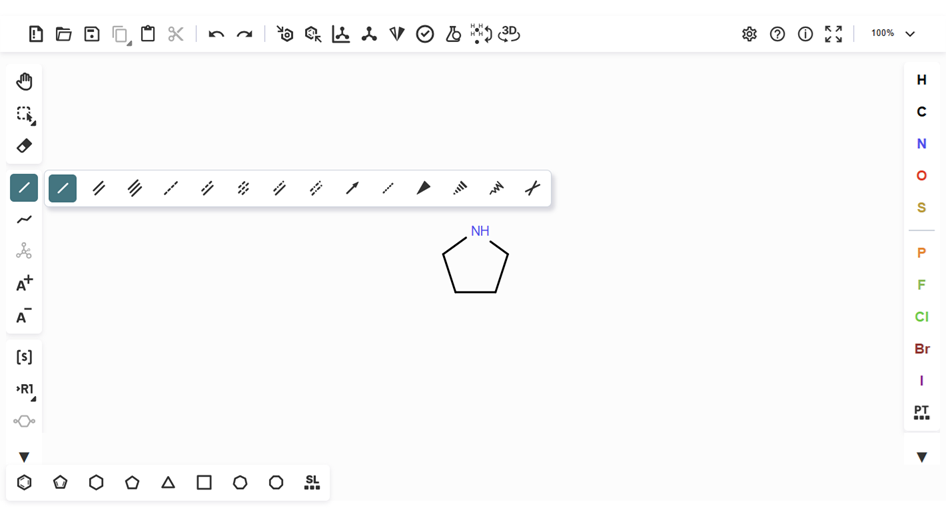
To use the chemical sketcher, click Register->From drawing instead. A blank canvas will appear with different toolbars on all sides of it. The top toolbar supports canvas-wide actions, such as clearing the canvas, loading an external file from commonly-used chemical file formats, or exporting the sketch to such a format. The right-hand toolbar provides access to all of the atoms, with the most commonly-used available in the toolbar and access to the full periodic table at the bottom labeled “PT.” The left-hand toolbar supports adding and modifying bonds, adjusting charge, and specifying side groups and chirality. Finally, the bottom toolbar provides access to time-saving structure templates. If at any time a mistake is made, the top toolbar contains the undo button, or you can use the standard keyboard shortcut Ctrl+Z.
To demonstrate the use of the chemical sketcher, we’ll draw the format for maleimide and use it to create an antibody conjugate. The backbone for maleimide is a five-member ring, so we’ll first click on the five-membered ring icon in the bottom toolbar, then click into the middle of the canvas to place it.
Next, we’ll modify the five-member ring so that it has the correct configuration of atoms and bonds. The first position of the maleimide backbone is a nitrogen atom, so we’ll replace the top-most carbon with nitrogen. To do this, we click on the letter N in the right-hand toolbar, then click on the top-most point of the five-member ring, replacing that carbon atom with a nitrogen atom. In addition to the nitrogen at position one, the carbon atoms at positions three and four share a double bond. Click the expansion arrow in the bond tool on the left-hand toolbar and select the double bond option. Then, hover over the bottom line of the ring and click to create a double bond between the two carbon atoms.
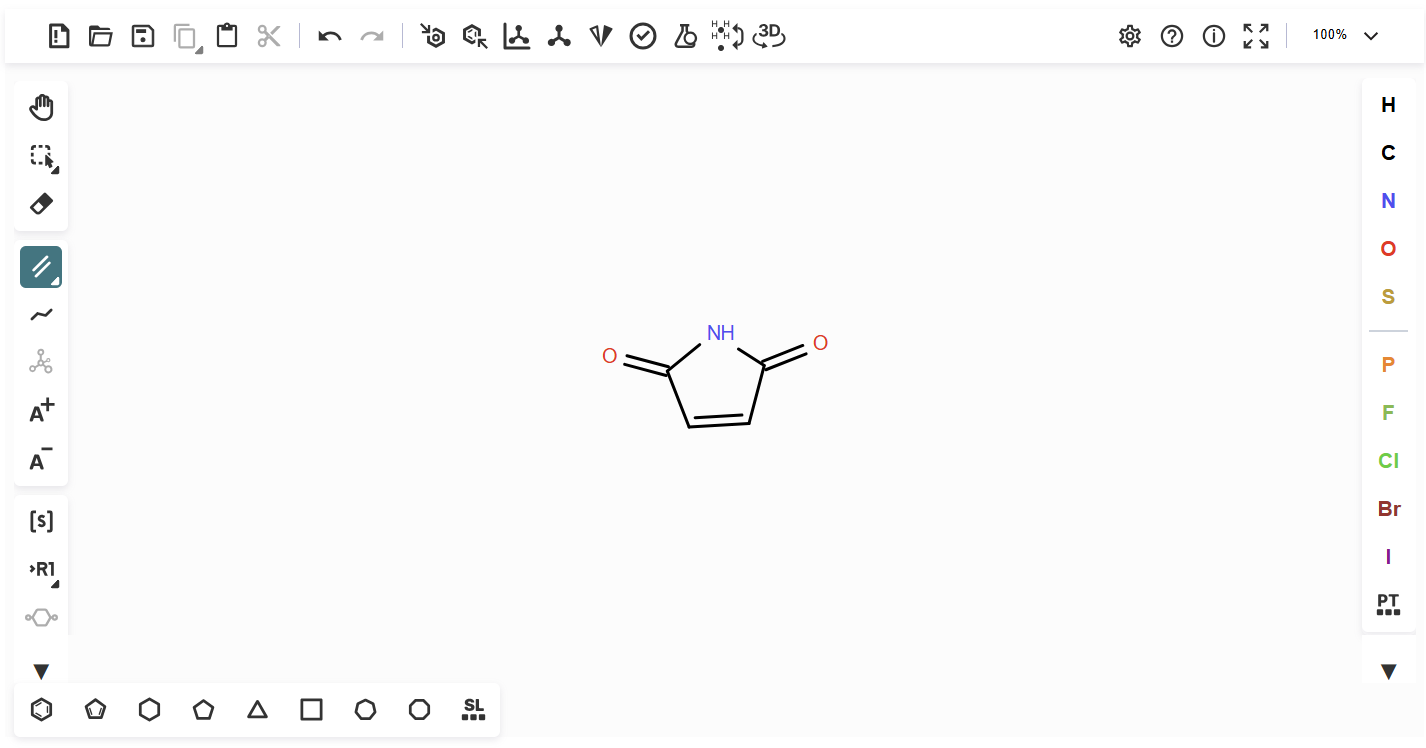
Finally, we’ll add the carbonyl groups at positions two and five, on either side of the nitrogen. Click on the oxygen atom in the right-hand toolbar, then click on the points on either side of the nitrogen atom and drag away from the molecule to create the bond. Select the double-bond tool again and click on each of the new bonds to the oxygen atoms to create the double bonds required of a carbonyl group. To correct the angles of the newly-bonded oxygen atoms, click the clean-up tool  in the top toolbar. The result should look something like the image below.
Click the Next button at the bottom of the canvas to advance to the registration form, then enter the name and optional description for the molecule. Click Register to add the sketched molecule to the registry. Its SMILES string and structure will now display in the table.
Bioconjugates
In Affinity, bioconjugates are defined by their combination of protein, linker, and conjugated moiety. Affinity supports the conjugation of both oligonucleotides and chemicals. To register your bioconjugate, navigate to the Antibody Conjugates page of the Materials module and click the Register button. A form will appear in which you can specify each component and associate a name and description with each combination. Complete this form and click Register to record all of the specified bioconjugates.