![logoTRANSPARENT-BG_no_LLC_small.png]](https://www.stackwave.com/hs-fs/hubfs/StackWave_Images/logoTRANSPARENT-BG_no_LLC_small.png?height=40&name=logoTRANSPARENT-BG_no_LLC_small.png)
To register a new Selection, click the Register Selection button. The system will ask the user to select the following:
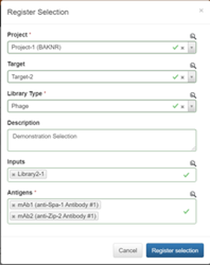
- project
- target (optional, and whose options will be based on the selected project)
- library type (Bacteria, Mammalian, Oligonucleotide, Phage, Yeast)
- description (optional)
- inputs (optional, and can be filled out after registration - options consist of libraries registered in the Materials module and rounds from previously registered Selections)
- antigens (options based on registered materials, i.e. cell lines, antibodies, proteins, reagents, scFv’s, etc).
Once registered, the Selection detail page displays all available metadata, and users can apply tags, upload attachments or make comments.
The Rounds section of the details page has two tabs - Diagram and Table.
The diagram is the users means of constructing a visual representation of their selection process.
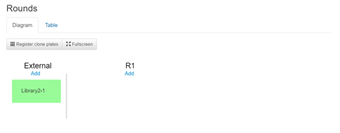
The form will initially appear with only an external section, populated with any inputs you specified during registration, and R1 (round 1). You can add additional external inputs if desired by clicking the Add button.
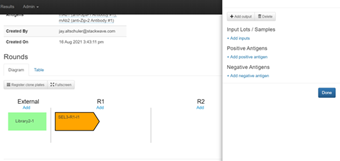
To start, click the Add link beneath R1. Whenever there are no inputs in a round, adding the first input will create a subsequent round. Click on the R1 Selection Input created in order to edit its details.
Clicking Add Output will create new output nodes in the existing round and connect them to the input node being edited. Users can create as many output nodes as desired from an input. Delete will remove the input node from the diagram (NOTE: If an input is connected to any outputs, it cannot be deleted until those connected outputs are removed). Each output node will result in a sample being registered in the system - these are the samples which can be used to create Clone Plates in later workflows.
Adding Input Lots or Samples will connect the input node to an external source. If you are adding an external output to a round after R1, a green circle will indicate the number of external sources rather than a direct line connection in order to keep the diagram easily readable.
Users can add positive and negative antigens for each input node - the options available are based on the Antigens specified during registration of the Selection. Users can edit available antigens in the Details section above the diagram.
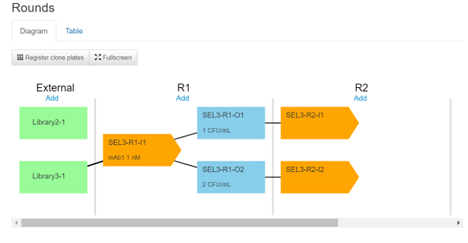
Output nodes can additionally have a Titer defined for record keeping sake - this is defined in CFU/mL and will be displayed on the output node details in the diagram.
Users can continue to add external sources, create rounds, and define inputs and outputs of the selection as needed. Below is a simple example of a selection diagram.
Click Register Clone Plates to quickly create clone plates based on this selection - the Project and Target will default according to the defined project and target in the Selection under review, and the user can limit the samples available to be arrayed into the clone plates to those specified in the selection diagram. Alternatively, clone plates can be registered directly from the Clone Plates page.
The Full Screen button will expand the diagram to full screen, allowing the user a full page view for printing or presentation.
Finally, the user can click the Table tab to translate the diagram into a tabular format to manage the spreadsheet using the LIMS' standard grid tools, as well as export the selection to Excel for external use.